The Ultimate Guide to Creating a Reliable Backup Strategy
Computer, Hardware & Software - 08, October, 2025 - Khadija Hanif
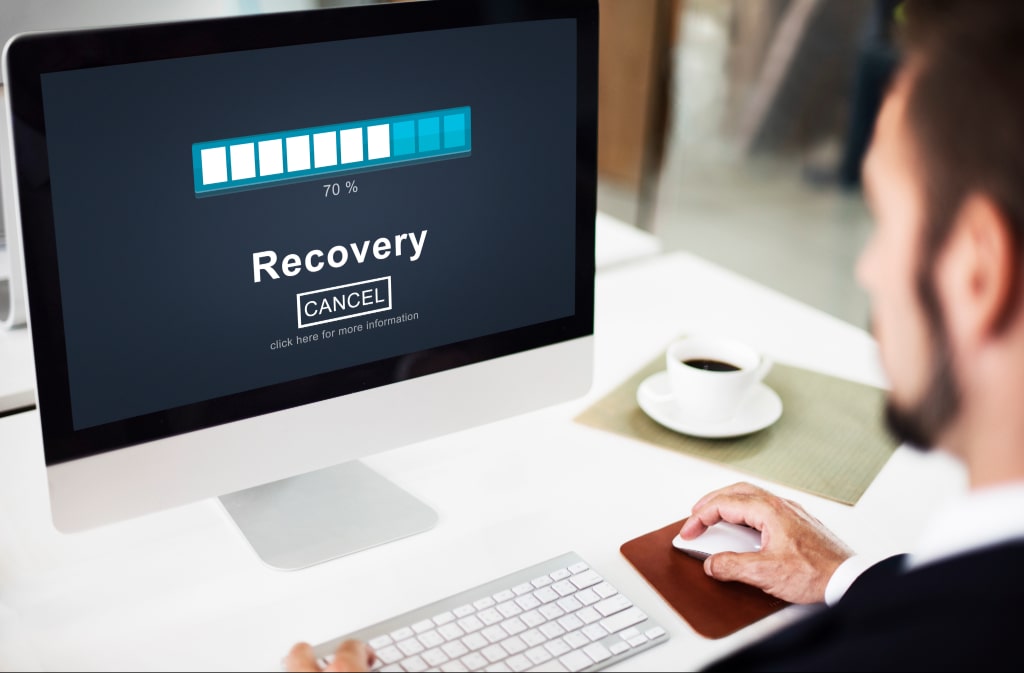
Imagine you’re working on an important project, and your computer suddenly freezes. When you restart it, all your files are gone. Scary thought, right? Most people don’t think about backups until something like this happens. But by then, it’s usually too late.
A reliable backup strategy isn’t just for big companies. It’s for everyone: students, freelancers, parents storing family photos, and small businesses. Technology makes our lives easier, but things can still go wrong, such as your device breaking, getting stolen, or being hacked. One small mistake could make you lose important memories or work from years ago.
That’s where modern data backup solutions come in. They’re designed to protect your files in the background so you don’t lose sleep over “what ifs.”
In this guide, we’ll walk through simple, practical steps you can take to protect your data. You’ll see that creating a plan doesn’t have to be complex - or expensive.
Why Backups Matter in Everyday Life
Most of us think, “That won’t happen to me.” But the truth? It can. A hard drive suddenly stops working. A phone slips into water. Or someone clicks delete on the wrong folder. In seconds, everything you thought was safe is just… gone.
Here are a few everyday examples (you might relate to one):
· A student works for weeks on a presentation. The night before the deadline, their laptop won’t turn on.
· A family keeps years of vacation photos on one phone. During a trip, the phone gets stolen.
· A small business stores all invoices on a single office computer. One power surge, and the files disappear.
Backups may not feel exciting, but they’re like an insurance policy. You hope you never need them, but when disaster strikes, you’ll be glad they’re there.
Role of Cloud Storage and Security
Cloud storage has changed the way people protect and access their files. Instead of relying only on local devices, your data gets stored online and can be reached from anywhere—your laptop, phone, or even a shared computer. Pretty handy if you travel or work in different places.
But with that convenience comes the question: “Is it safe?” The answer depends on how well you choose your provider. Good services use encryption, which scrambles your files so only you can unlock them. Many also offer two-factor login (you get a code on your phone to confirm it’s really you).
Restore What Matters: How File Versioning Saves You
Ever made changes to a file, then later wished you could go back to the older version? That’s where file versioning and restore save the day.
Here’s how it works: each time you save a file, the system keeps earlier versions too. So, if you delete a slide in your school project or accidentally overwrite a business document, you can roll back and recover the older copy. It’s like having an undo button for your entire file history.
Reliable Backup Strategy
Creating a reliable backup strategy ensures your data stays safe no matter what happens — from accidental deletions to system crashes. With EaseUS, you can easily protect your files, photos, and entire system through smart and automated backup solutions. Don’t wait for data loss to strike grab EaseUS Coupon Codes now and enjoy amazing savings on reliable Backup Strategy solutions that keep your important files safe and accessible.
Key Steps to Build a Reliable Backup Strategy
-
Use Trusted Backup Software: Choose a dependable tool like EaseUS Todo Backup for creating full, incremental, or differential backups.
-
Set a Backup Schedule: Automate backups daily or weekly to keep your data up to date.
-
Store Copies in Multiple Locations: Keep backups both locally (external drive) and in the cloud for added safety.
-
Test Your Backups: Regularly check that your backups work correctly and can be restored without issues.
-
Keep Security in Mind: Protect your backup files with passwords or encryption to prevent unauthorized access.
EaseUS makes the entire process simple, reliable, and stress-free — ensuring your important data is always recoverable when you need it most.
Types of Backup Methods
There are different ways to back up your files. Each one has its own pros and cons. You don’t have to stick to one method—you can use a mix that fits your needs.
1. External Hard Drives
These are big storage devices you plug into your computer with a cable. They can store anywhere from 500 GB to 5 TB or more (that’s thousands of photos, videos, or documents).
Just plug it in and copy your files. Remember to back things up every now and then—it doesn’t happen automatically.
Best for: Backing up lots of files like school projects, photos, or videos.
2. USB Drives (Pen Drives)
These are small, portable, and easy to use. They usually store between 8 GB and 256 GB. You can carry them in your pocket. But these are not great for long-term storage. Also, they’re tiny, so easy to lose.
Best for: Moving files quickly between computers or saving a few important files.
3. Network-Attached Storage (NAS)
This is like having your own mini server at home or in the office. Storage can go from 1 TB to over 10 TB. Everyone on the same Wi-Fi can access it. The only problem is setup; it can be a bit tricky and costly.
Best for: Families or teams that need one place to save and share files.
4. Online Services (Cloud Backup)
This saves your files automatically online. You can start with free space (5–15 GB) or pay for more (2 TB or more). Once set up, it runs in the background. But you need an internet connection to access your files.
Best for: Keeping your important files safe and being able to reach them from any device.
Pro Tip!
Try using both a local backup (like an external drive) and an online one; it is usually the safest bet. That way, your files are protected even if something goes wrong with one method.
Where Should Your Files Be Stored?
When planning a backup, one of the first questions is: where should the files live? That’s where the debate of on-premise vs cloud backup comes in.
· On-Premise Backup
This is when your files live on devices you own—like an external hard drive, a server, or a NAS system. The good part? You’re in full control. No one else has access. The bad part? If something happens to your home or office (like a flood or fire), those backups can disappear along with everything else.
· Cloud Backup
Here, your files are stored online by a backup service. You don’t need to buy extra hardware, and your data stays safe even if your computer breaks. The catch? You need the internet to access it, and you’re trusting the provider to keep things secure.
So, which one is best? Both have value. Many people use a mix of local backups for speed and cloud backups for safety.
Don’t Forget the Disaster Recovery Plan
Backup alone is good, but it’s not the full picture. You also need to know what happens after something goes wrong. That’s where a recovery plan comes in.
Think of it as a roadmap. If your files are lost or your system is attacked, the plan tells you what to do next. For example:
· A company gets hit with ransomware. Instead of panicking, they already have copies of data stored in multiple places.
· A student’s laptop crashes before finals. Their files are safely stored online, ready to download again.
Without a plan, you might waste days—or even weeks—trying to piece things back together. With a plan, you can get back on your feet much faster.
How to Build Your Own Backup Plan (Without Getting Overwhelmed)
Making a backup plan doesn’t have to be complicated. Just follow these simple and easy-to-follow steps to keep your important files safe.
1. Figure Out What’s Worth Saving
You don’t need to back up everything. Just focus on the stuff that’s important or hard to get back if lost.
Think about:
· School projects or work files
· Family photos and videos
· Important papers (like ID scans or client files)
In short, backup only those things that would be hard to replace.
2. Confirm Where You’ll Store Backups
It’s smart to use more than one place to save your files. That way, if one fails, you still have another copy.
Here’s a simple mix:
· External Drive: Connect it and copy your files. Fast and easy to use.
· Cloud Storage: Backs up your files on the internet without you doing anything.
Using both gives you extra safety. One is close by, and the other is online—just in case something happens.
3. Set a Regular Backup Time
Backups only work if you do them regularly. Pick a schedule—daily, weekly, or even monthly—and stick to it. You can set reminders or automate it.
4. Test That It Actually Works
Try restoring a file or folder just to be sure your backups are working. Better to check now than when it’s too late!
5. Adjust As You Go
As your files grow, your backup needs might change. You might need more space or better tools. It’s okay to tweak your plan over time.
Remember: Even small steps can protect you from big headaches later. Start simple—and build from there.
Beyond Backup: Why Business Continuity Planning Matters
For businesses, a backup isn’t just about saving files—it’s about being open when things go wrong. That’s where business continuity strategy comes in.
Imagine you run a small bakery. One morning, your payment system crashes. Without a plan, you can’t process sales, and every customer who walks in leaves frustrated. With a plan, you’ve already got backup systems in place. You switch and keep trading. Secure your data today and save more! Use the latest Tenorshare Coupon Codes to get exclusive discounts on powerful Backup Strategy tools that keep your files safe and recoverable anytime.
It’s the same for larger companies. A single day of downtime can cost thousands of dollars. But if you’ve prepared, you can keep operations running smoothly while repairs happen in the background.
The idea is simple: backups protect files, but continuity protects your work, your customers, and your reputation. Even for small businesses, this mindset can be the difference between bouncing back and shutting down for good.
Practical Tips for Individuals and Small Teams
You don’t need a huge budget or fancy servers to protect your data. Sometimes these little steps make the biggest difference.
· Start with What You Have: A basic USB stick is a good first step.
· Store Copies in Different Places: Keep one copy at home and another with someone you trust.
· Use Cloud Storage for Daily Work: Cloud tools save your files automatically and let you access them anytime, anywhere.
· Set Reminders: If you’re not using automatic tools, put a note on your calendar to back up once a week.
· Think About Budget-Friendly Tools: Many reliable services are low-cost or even free with limited storage.
For affordable digital tools that make things easier, you can also check resources like getmecodes.com.
End Note
Losing data isn’t just frustrating—it can turn into a real disaster. Whether it’s school projects, client files, or precious family photos, the impact of losing them is bigger than most people realise. That’s why taking time to build a reliable backup plan is one of the smartest moves you can make.
The good news? You don’t need to be a tech expert or spend a fortune. Start with the basics, like keeping an extra copy on a USB drive or saving important files online. Add more steps as you go, and soon you’ll have a system that feels natural and easy.
With today’s data backup solutions, you can protect what matters without adding stress to your routine. It’s about peace of mind—knowing that no matter what happens, your files are safe and ready when you need them.
FAQs
1. What’s the safest place to store personal files long-term?
There isn’t a single “safest” place. The trick is to keep at least two copies—one on a local device and one online. For example, store files on an external hard drive and also upload them to a secure cloud account. This way, even if one fails, the other is still available.
2. How often should I test my backup?
At least every few months. Pick a small file, restore it and see if it opens. This quick test will prove your backups are working. Many people skip this step and only find out too late.
3. Can I back up my phone without paying for an app?
Yes, most phones already have free options. iPhones use iCloud, and Android devices use Google Drive. Both will sync photos, contacts and settings automatically. You don’t need to spend extra unless you want more storage.
4. What are the benefits of using backup automation tools for beginners?
They take away the hassle of remembering. Once set up, your files are saved on schedule without you doing anything. Beginners love this because it’s simple and stress-free. Some budget-friendly options are listed at sites like getmecodes.com, which help you explore useful tools without spending too much.
5. Do backups slow down my computer or internet?
Not really. Local backups run quietly in the background. Cloud backups may use some internet speed during uploads, but it’s usually not noticeable unless you’re moving very large files.

Khadija Hanif (LinkedIn)
I am a creative content writer with three years of experience, covering a wide range of topics from fashion to the latest trends in the tech and entertainment industries. I supports mental health initiatives. My aim is to provide clear, insightful information on latest trends, fashion, health & wellbeing .
Computer, Hardware & Software Discount Stores
























 Sign Up & Get $5 Instantly!